Introduction
GST Invoice for Wcfm multi-vendor Plugin is the only product capable to print direct invoice runtime. No need to find hooks in different invoice plugins.
Choosing this plugin you can easily process high number of orders, With Growing business it become a difficult to handle various orders with different tax slabs while billing at the payment gateway. This plugin helps you to assign taxes to different products at the time initial setup at one, which at the end becomes easier for billing & Generates tax slabs with CGST, SGST and IGST automatically, maintaining records & generate vendor-wise PDF invoices for the order with GSTIN and HSN numbers.
GST is applied in all the sectors may it be product or service based. This plugin can be used in FMCG industry like farma, investment, electronics construction etc. Providing that they sell online through WooCommerce platform.
Activation of GST Invoice for Wcfm multi-vendor plugin
Download the plugin from here
After downloading the GST Invoice for Wcfm multi-vendor plugin, install it to your store.
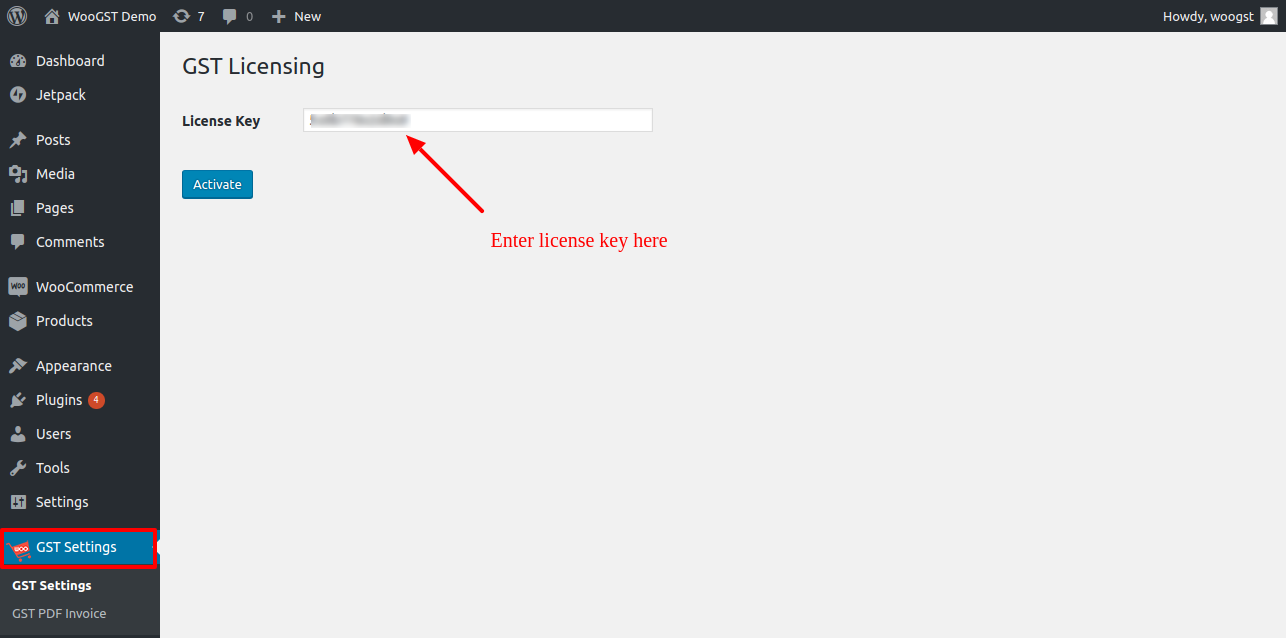
Navigate to GST Settings, add the license key for WooGST plugin in the text field and click on activate.
URL : [your-store-url]/wp-admin/admin.php?page=gst-settings
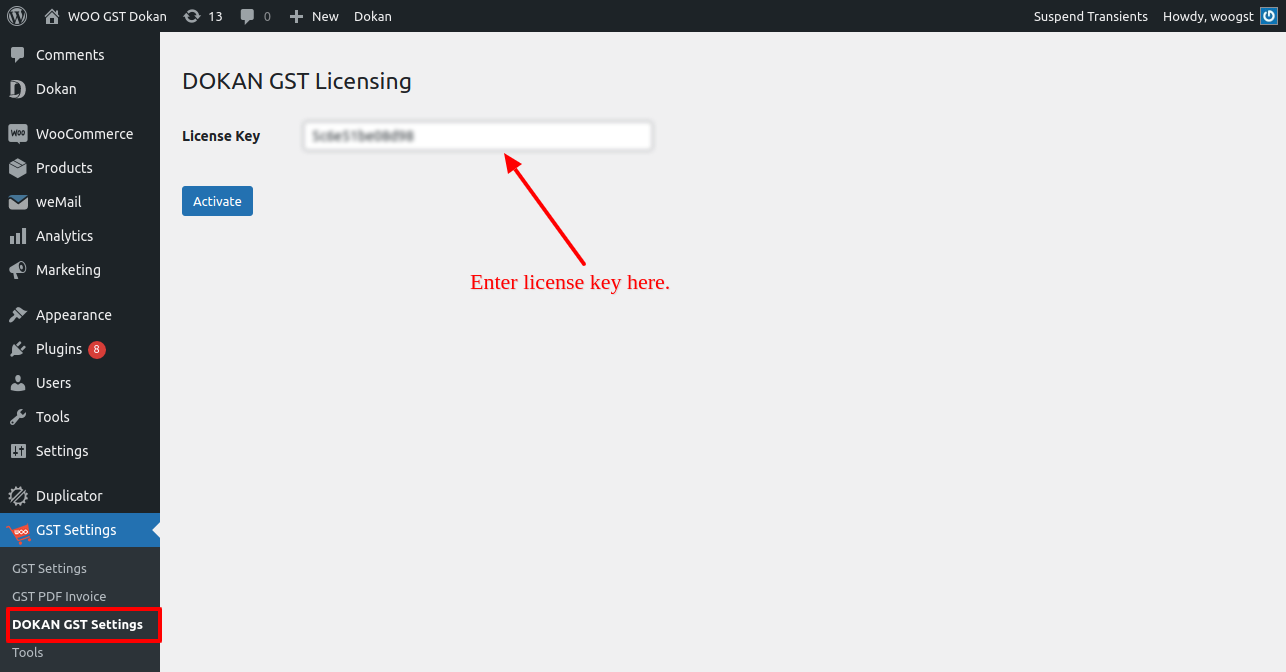
Navigate to GST Settings > Wcfm multi-vendor GST Settings, add the same license key for WooGST Wcfm multi-vendor Addon in the text field and click on activate.
URL : [your-store-url]/wp-admin/admin.php?page=dokan-gst-settings
WooGST Configuring Tax slabs
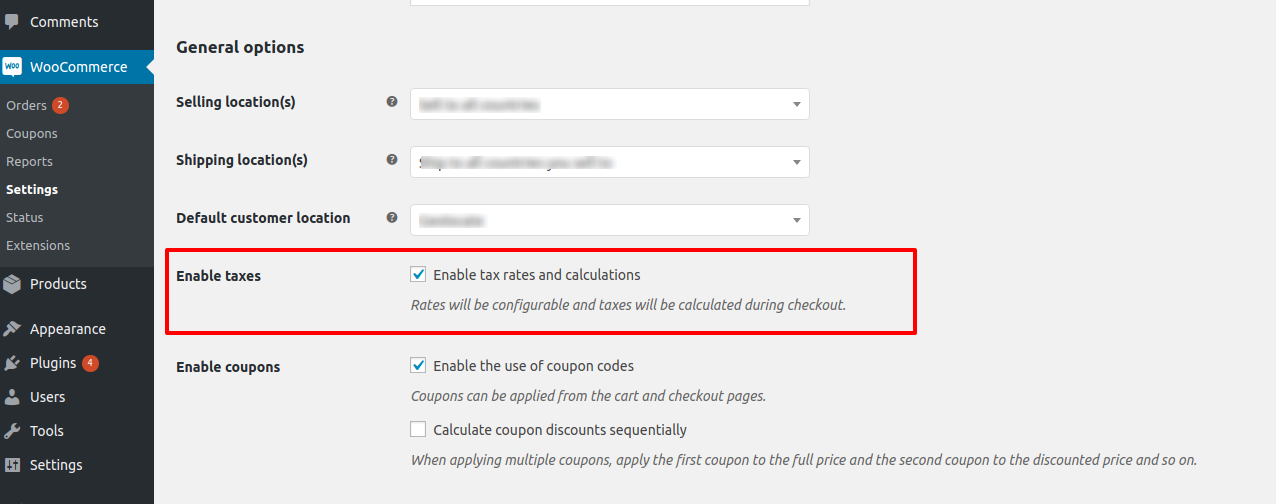
To add tax slabs you need to enable taxes for your store.
To enable the taxes navigate to WooCommerce > Settings > General then enable the tax.
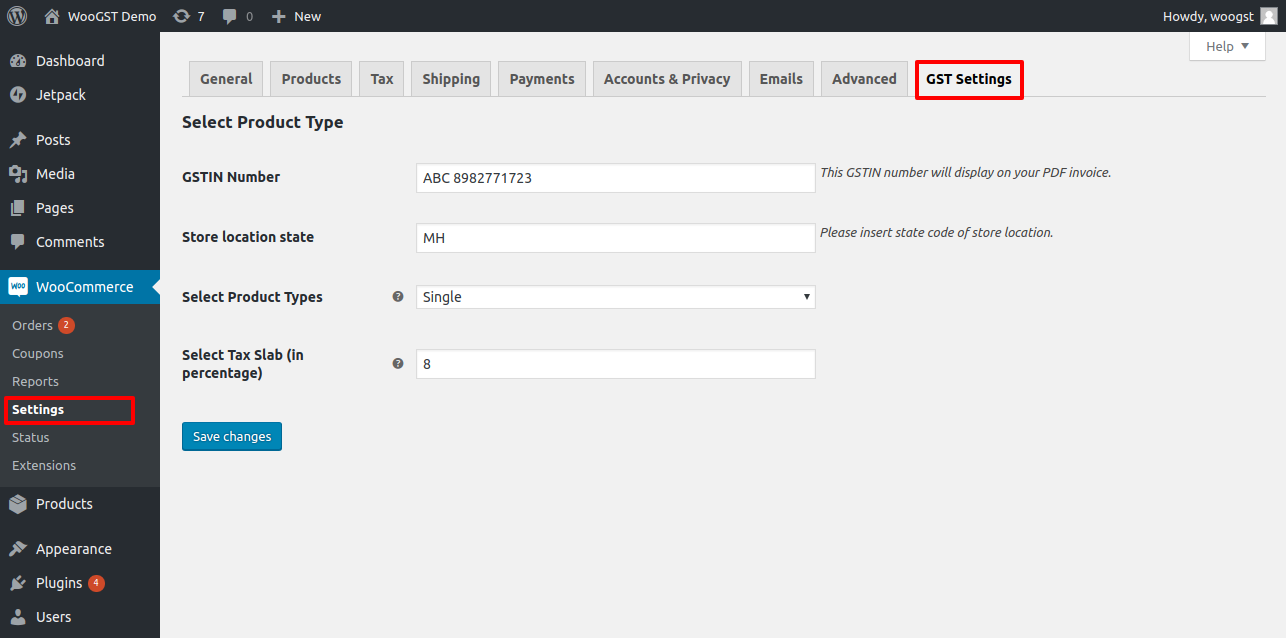
After successful activation of plugin and enabling the taxes you'll see the GST Tax Slabs settings.
To manage the settings navigate to WooCommerce > Settings > GST Settings
You can add tax slabs single or multiple depending on your choice
In GSTIN Number textfield you can add your stores GSTIN number
In Store location textfield you can add state code where your store is located
From the settings you can add single or multiple tax slabs as per your need
For single tax slab

For multiple tax slab

Apply tax to the product
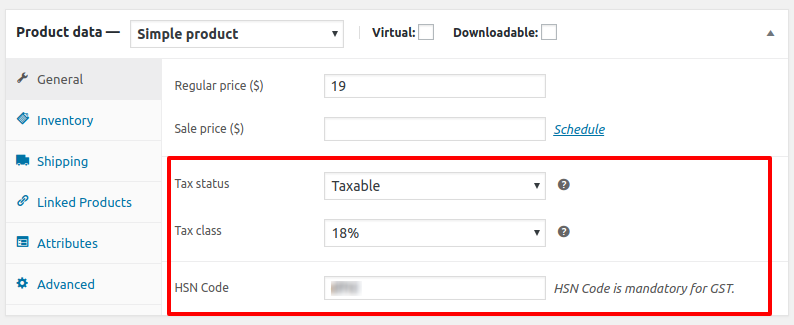
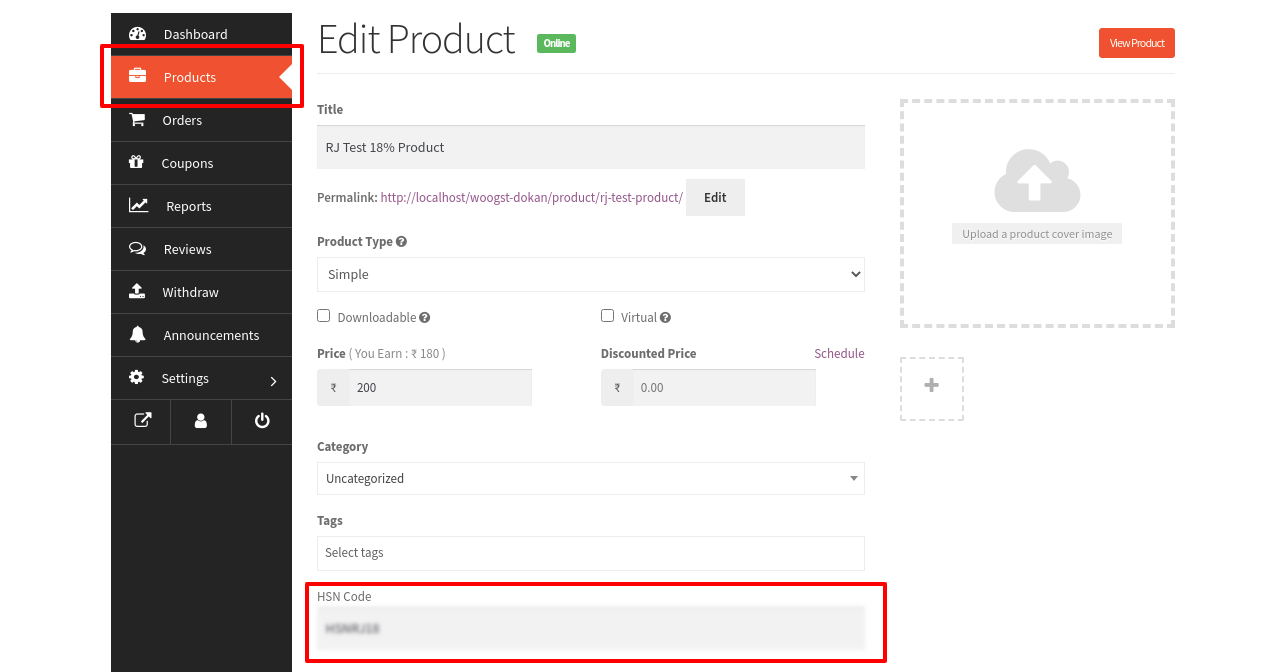
To add the tax to the product navigate to product edit page and make the product as taxable. Chose the tax slab. Enter the HSN Code for the product(Mandatory for GST)
PDF Invoice settings
WooGST plugin provides the PDF invoice for orders.
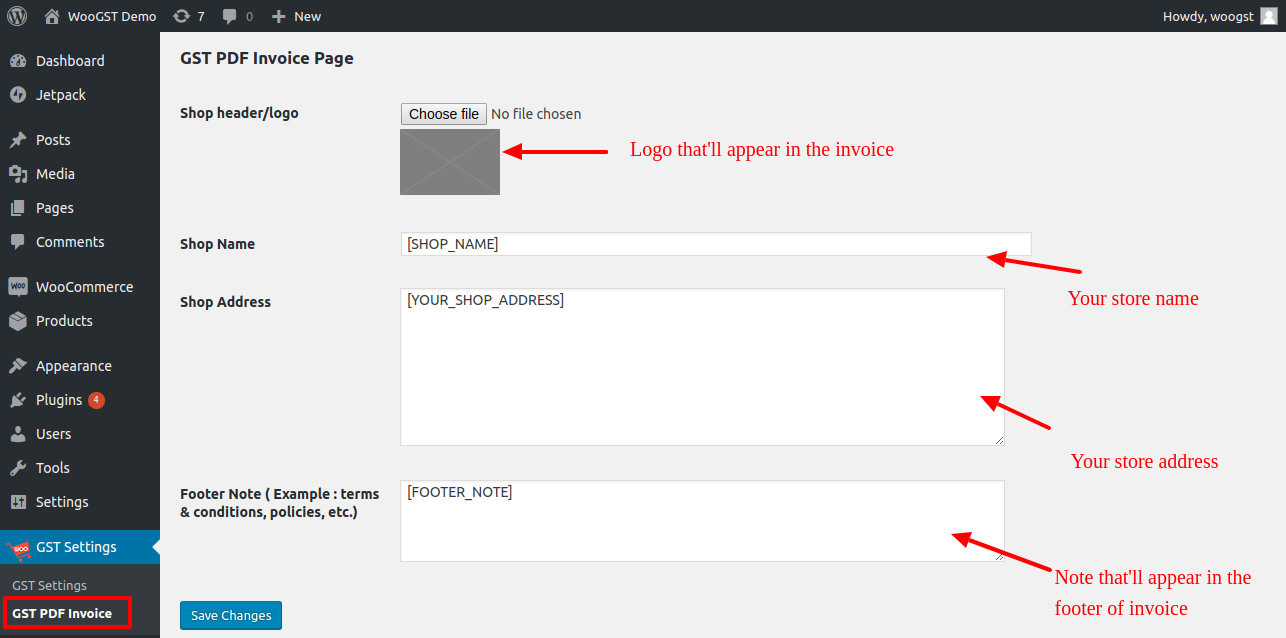
To manage the PDF invoice settings navigate to GST Settings > GST PDF Invoice
From here you can add the Logo, Shop name, Shop address, Footer note which will appear in the PDF invoice.
See the sample PDF Invoice Sample PDF
Vendor side settings
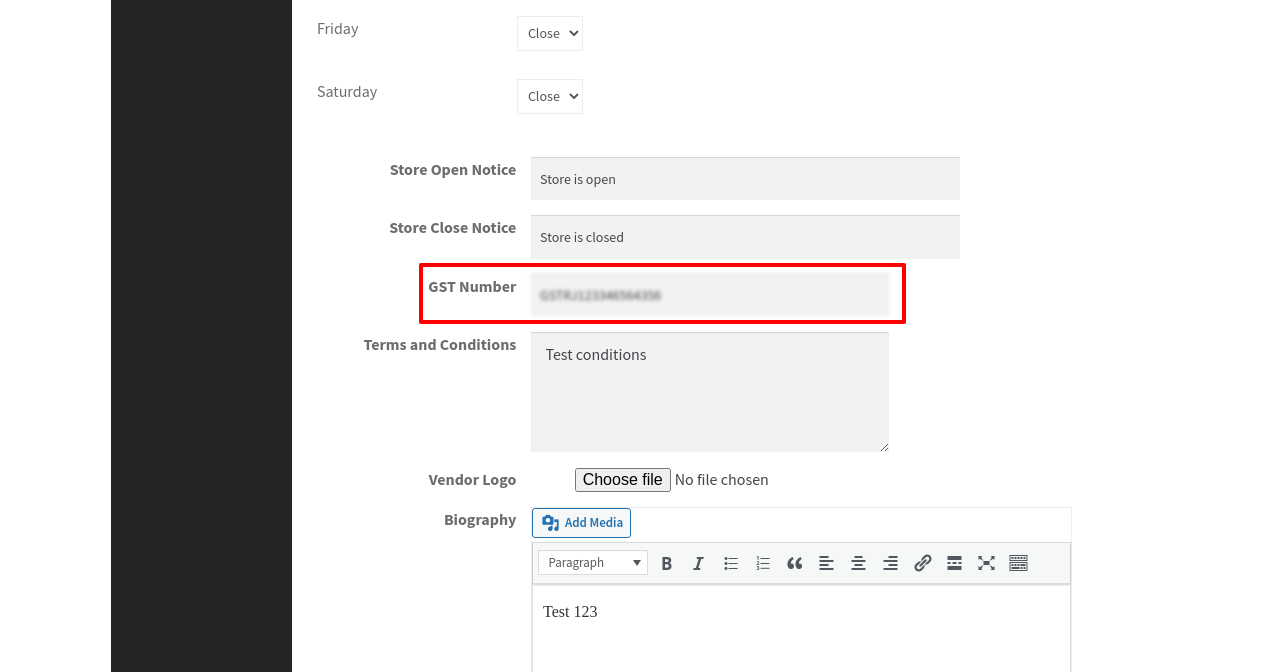
GST Invoice for Wcfm multi-vendor plugin provides store GST Number, Terms and Conditions, Product HSN code field also vendor side PDF invoice for orders.
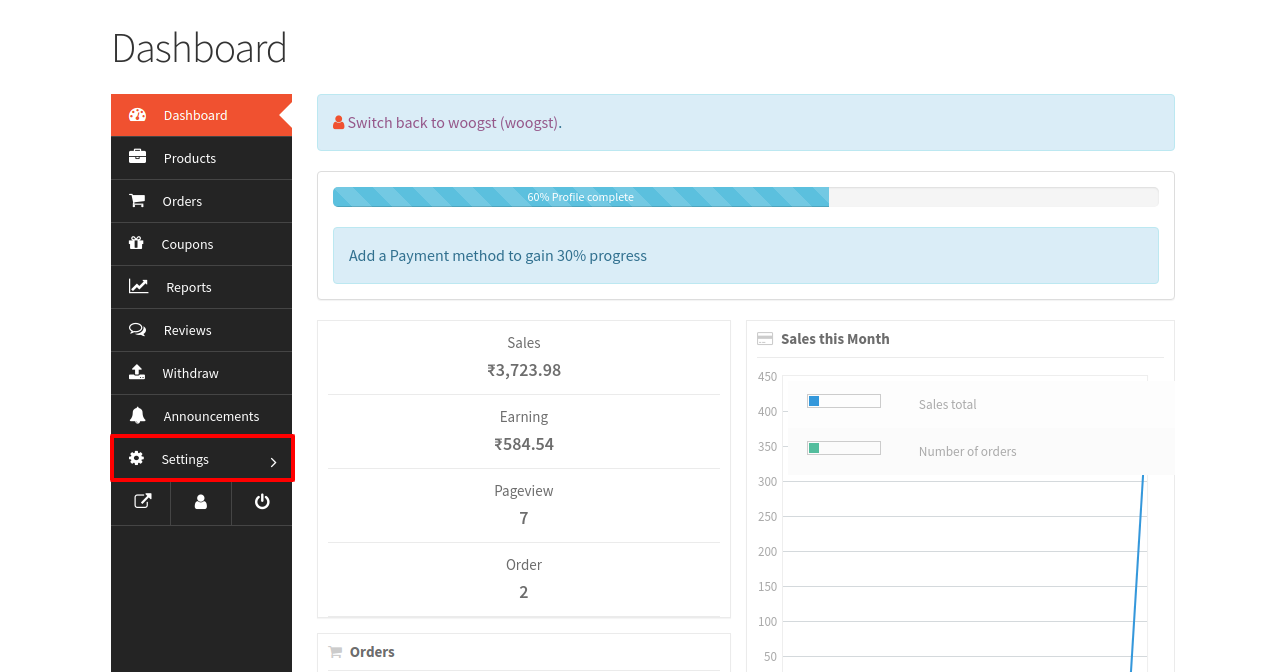
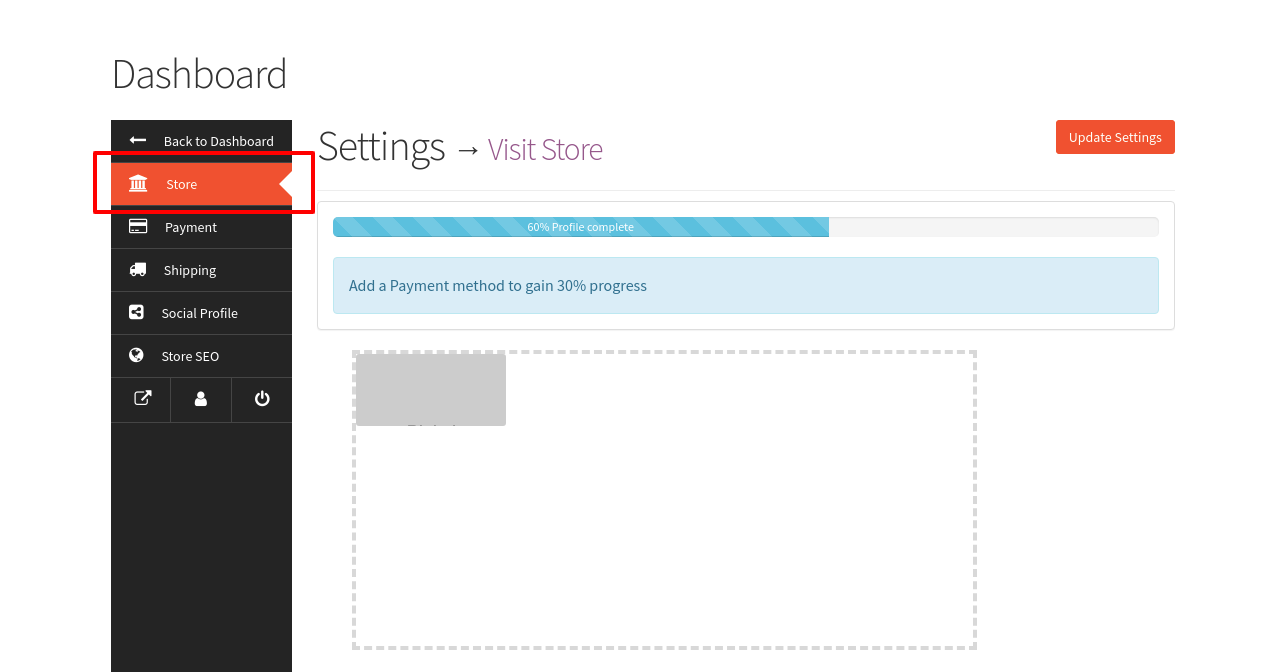
To manage GST custom settings navigate to Vendor Dashboard Settings > Store GST Number and Terms and Conditions
From here you can add the store GST Number, Terms and Conditions which will appear in the PDF invoice.
See the sample PDF Invoice Sample PDF
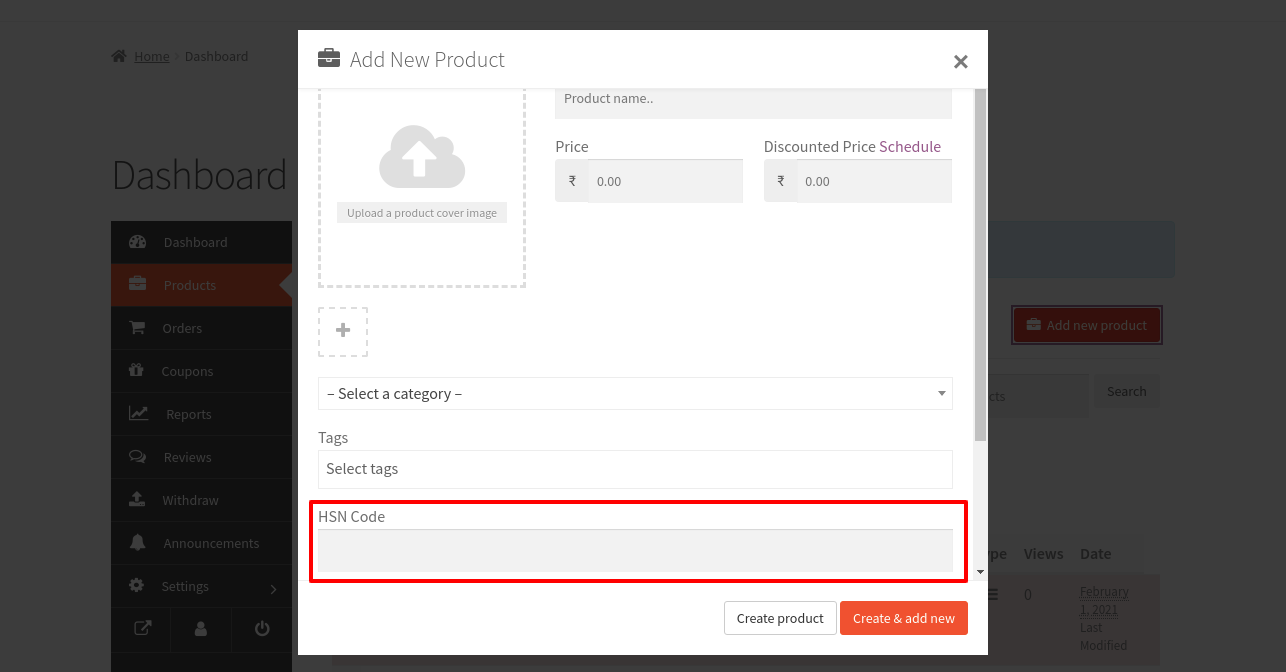
Add HSN code.
To manage GST custom settings navigate to Vendor Dashboard > Product > Add new product
From here you can add the HSN code for the product.
Downloads the PDF invoice action.
To manage GST custom settings navigate to Vendor Dashboard > Product
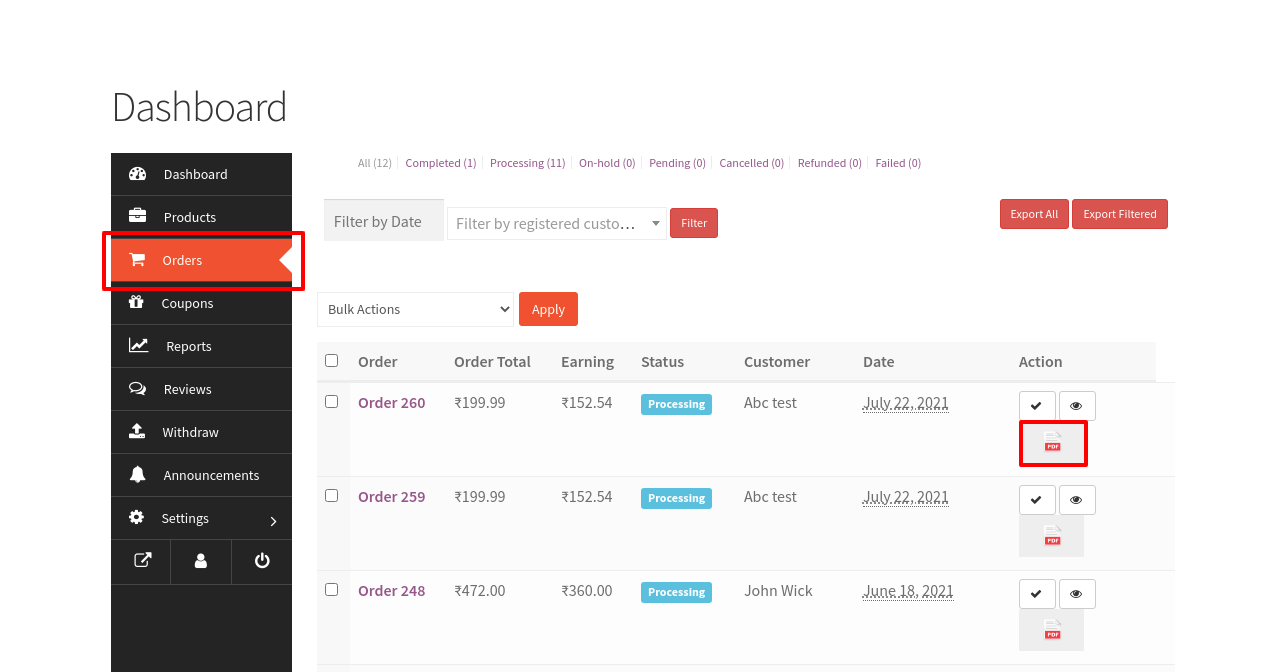
From here you can download the PDF invoice for orders from the vendor side.
Download PDF invoice
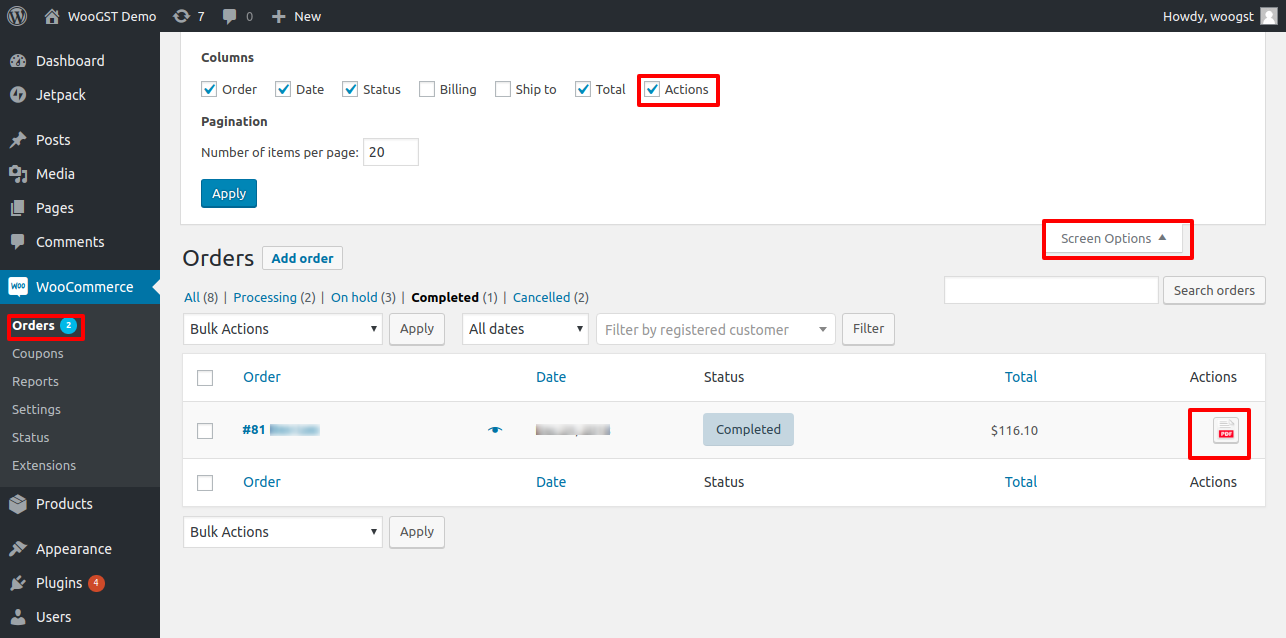
You can download the PDF invoice from the orders page.
Navigate to WooCommerce > Orders, enable the Actions from Screen Options
After enabling the actions you'll see the Actions column in the Orders table. By clicking on the PDF icon you can download the PDF Invoice